> ## Documentation Index
> Fetch the complete documentation index at: https://cortex-foundation-add13747-droid-1a2462c9-cor-444-sanitize.mintlify.site/llms.txt
> Use this file to discover all available pages before exploring further.
# Chat quickstart
> From an open tab to a useful first conversation — send, attach, pick a model, and keep the thread in a project.
This walk-through takes about five minutes. Steps 1–3 work as a guest; step 4 needs a signed-in account.
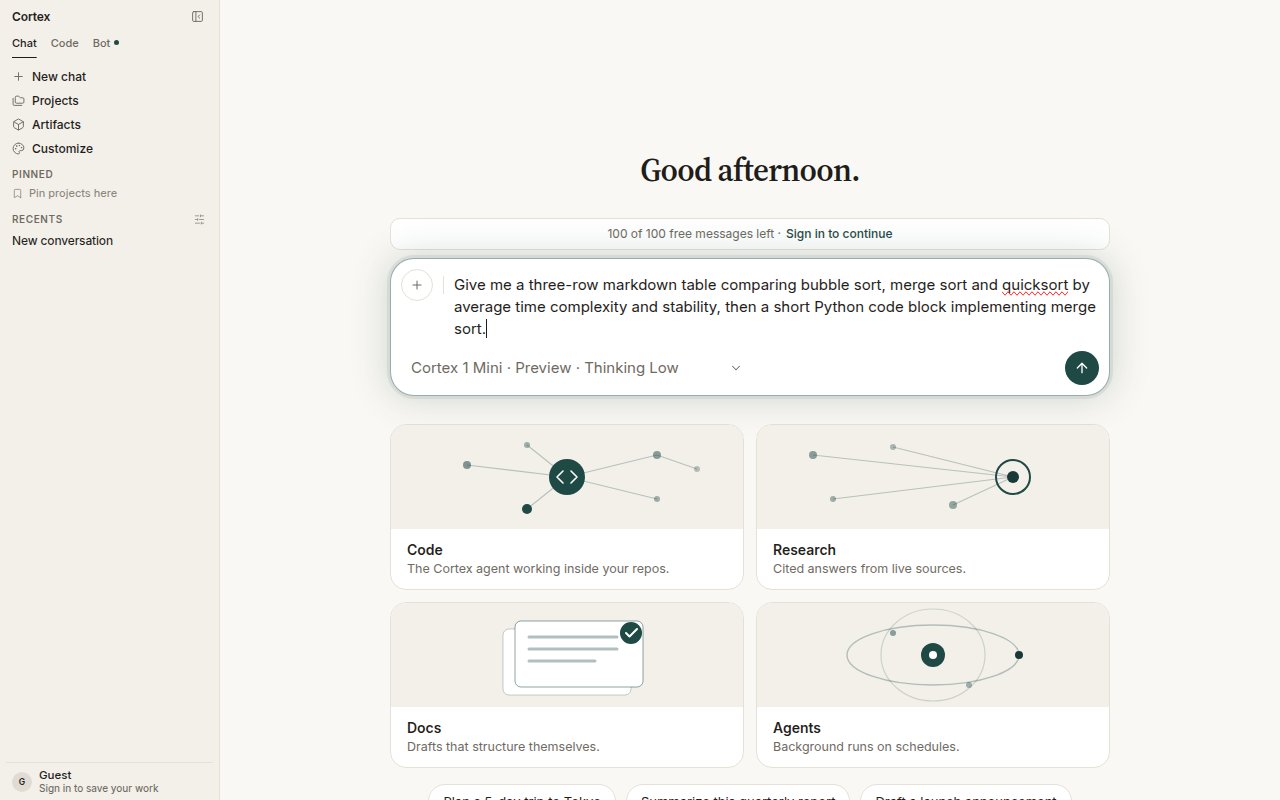 Go to [cortex.foundation](https://cortex.foundation). Chat is the default surface. Type a question in the composer and press **Enter**.
```text theme={null}
Give me a three-row markdown table comparing bubble sort, merge sort and quicksort
by average time complexity and stability, then a short Python code block implementing merge sort.
```
The reply streams in as it is written. Tables, headings, and code blocks render as you would expect; every code block has its own **Copy**. Press **Esc** if you want to stop a response.
Choose **+** on the composer, then **Attach file**, or drop a file onto the composer. Type and size checks run at upload; a rejected file is not attached. Attachments land in your [Library](/chat/library), and the conversation receives the file — never a URL you typed.
Open the model chip under the text box. Choose **Cortex 1 Mini** (the default) or **Cortex Teutonic-1**, set **Thinking** to Low, Medium, or High, and switch on **Deep Research** when you want a cited report rather than a quick answer. The choice belongs to this conversation. See [Models](/chat/models).
Sign in, then open **Projects** in the sidebar and choose **New project**. Give it a name and, optionally, standing instructions — they are read before every chat in the project. Start the next conversation inside it, or use **Move to project** in the header of an existing thread.
In the thread header choose **Start a plan**. The plan stays linked to the conversation and outlives it if you delete the chat. Track it under **Planning**. See [Plans](/chat/plans).
## Good first prompts
| Try | Why it shows Chat well |
| ----------------------------------------------------- | -------------------------------------------------------------- |
| *Summarize this quarterly report* with a PDF attached | Documents come from Library, not a pasted URL |
| *Research the latest on …* with Deep Research on | Planned questions, live sources, a cited report |
| *Draft a launch announcement* | Long-form writing with headings; open a canvas to keep editing |
| *Plan a 5-day trip to Tokyo* | A natural candidate for **Start a plan** |
## What guests can and cannot do
Guests get a daily and monthly allowance (the banner above the composer shows it), can attach files to the current session, switch models, and use Deep Research. Projects, Library across sessions, memory, plans that persist, connected apps, and MCP servers need an account. See [Accounts](/getting-started/accounts).
## Next
* [Projects](/chat/projects) — instructions, chats, and files together.
* [Library](/chat/library) — what happens to your uploads and generated files.
* [Tools and connectors](/chat/tools) — connect an app or an MCP server.
Go to [cortex.foundation](https://cortex.foundation). Chat is the default surface. Type a question in the composer and press **Enter**.
```text theme={null}
Give me a three-row markdown table comparing bubble sort, merge sort and quicksort
by average time complexity and stability, then a short Python code block implementing merge sort.
```
The reply streams in as it is written. Tables, headings, and code blocks render as you would expect; every code block has its own **Copy**. Press **Esc** if you want to stop a response.
Choose **+** on the composer, then **Attach file**, or drop a file onto the composer. Type and size checks run at upload; a rejected file is not attached. Attachments land in your [Library](/chat/library), and the conversation receives the file — never a URL you typed.
Open the model chip under the text box. Choose **Cortex 1 Mini** (the default) or **Cortex Teutonic-1**, set **Thinking** to Low, Medium, or High, and switch on **Deep Research** when you want a cited report rather than a quick answer. The choice belongs to this conversation. See [Models](/chat/models).
Sign in, then open **Projects** in the sidebar and choose **New project**. Give it a name and, optionally, standing instructions — they are read before every chat in the project. Start the next conversation inside it, or use **Move to project** in the header of an existing thread.
In the thread header choose **Start a plan**. The plan stays linked to the conversation and outlives it if you delete the chat. Track it under **Planning**. See [Plans](/chat/plans).
## Good first prompts
| Try | Why it shows Chat well |
| ----------------------------------------------------- | -------------------------------------------------------------- |
| *Summarize this quarterly report* with a PDF attached | Documents come from Library, not a pasted URL |
| *Research the latest on …* with Deep Research on | Planned questions, live sources, a cited report |
| *Draft a launch announcement* | Long-form writing with headings; open a canvas to keep editing |
| *Plan a 5-day trip to Tokyo* | A natural candidate for **Start a plan** |
## What guests can and cannot do
Guests get a daily and monthly allowance (the banner above the composer shows it), can attach files to the current session, switch models, and use Deep Research. Projects, Library across sessions, memory, plans that persist, connected apps, and MCP servers need an account. See [Accounts](/getting-started/accounts).
## Next
* [Projects](/chat/projects) — instructions, chats, and files together.
* [Library](/chat/library) — what happens to your uploads and generated files.
* [Tools and connectors](/chat/tools) — connect an app or an MCP server.