

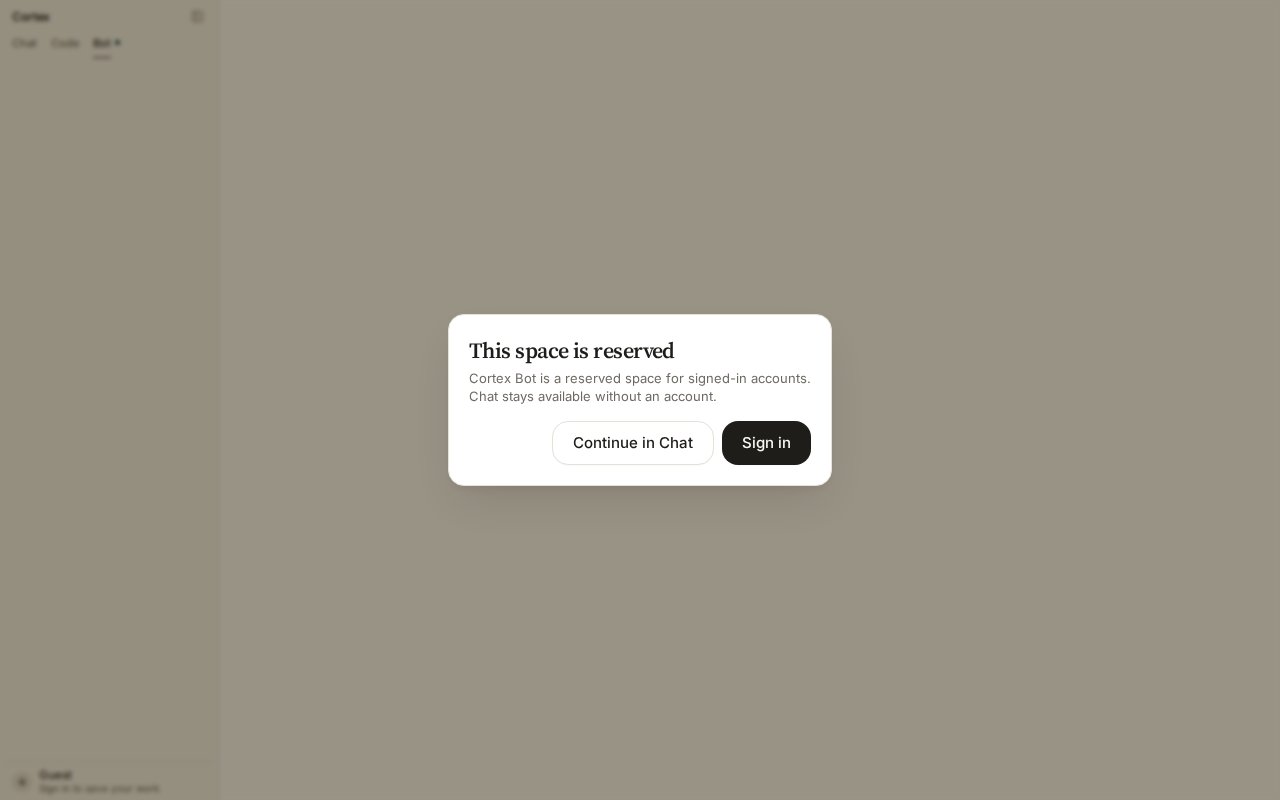
What a guest sees on a Bot deep link. Sign in to reach the setup form.
1
Sign in and open Bot
Sign in from the sidebar footer at cortex.foundation, then choose Bot in the product switcher. Guests see This space is reserved — choose Sign in.
2
Create a bot
With no bots on the account you land on the setup form. Give the bot a name and a purpose, then create it. It appears in the sidebar; the pane opens on it.
3
Open its computer
On the Computer rail choose Open desktop. The Cloud guest starts — the rail reads Connecting while it does — and the live desktop appears: screen, browser, files.
4
Give it a task
Describe the job in the conversation.The bot works on its desktop while you watch. It reports back in short messages rather than a transcript of every click.
5
Approve — or decline — a parked step
When the bot reaches a consequential action — changing something in a connected app, or a dangerous computer step — it parks and shows Allow / Deny / Always. Nothing runs until you choose. See Approvals.
6
Put it on a schedule (optional)
Add a routine for work you want repeated. Routines fire in your local weekday hours. See Routines.
7
Let it sleep
Choose Sleep on the Computer rail when you are done. The next task wakes the guest before the bot is prompted.
Give the bot tools
Under Customize → Connectors, connect an app and make it available to Cortex Bot (or to both Chat and Bot). A bot never inherits a connection you did not assign. See Tools and connectors.Good first tasks
Related
- Computer — Open desktop, Sleep, and the hosts.
- Tools — everything a bot can call.
- Troubleshooting