

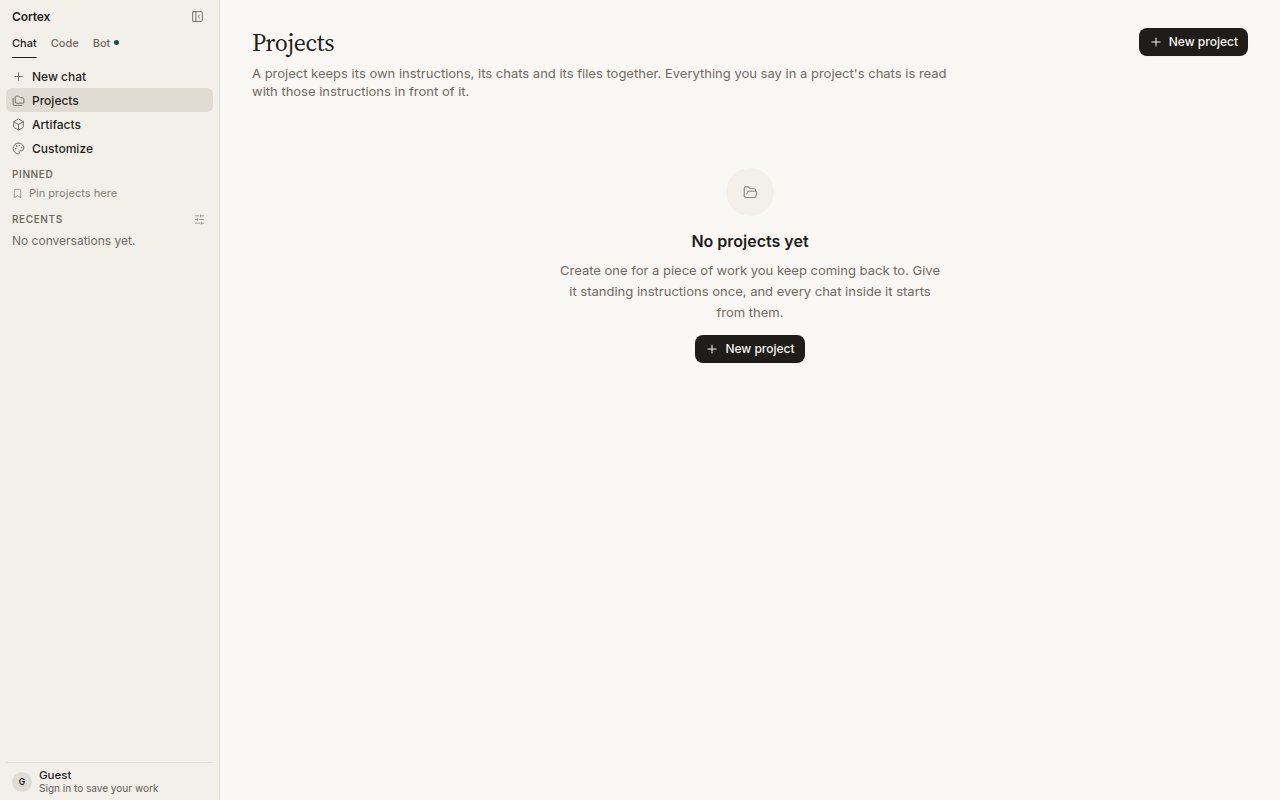
Projects, before you have created one.
What a project holds
Create a project
1
Sign in
Guests cannot create a project; the chat would have nowhere to live once the tab closes.
2
Open Projects and choose New project
Give it a Name. Instructions are optional and can be changed at any time.
3
Write instructions worth reading before every chat
Who the audience is, house style, units, what to avoid. For example: We sell to mid-market SaaS teams. Prices are in euros. Prefer British spelling.
4
Start chatting inside it
Open the project and start a new chat there, or move an existing thread in with Move to project from the thread header.
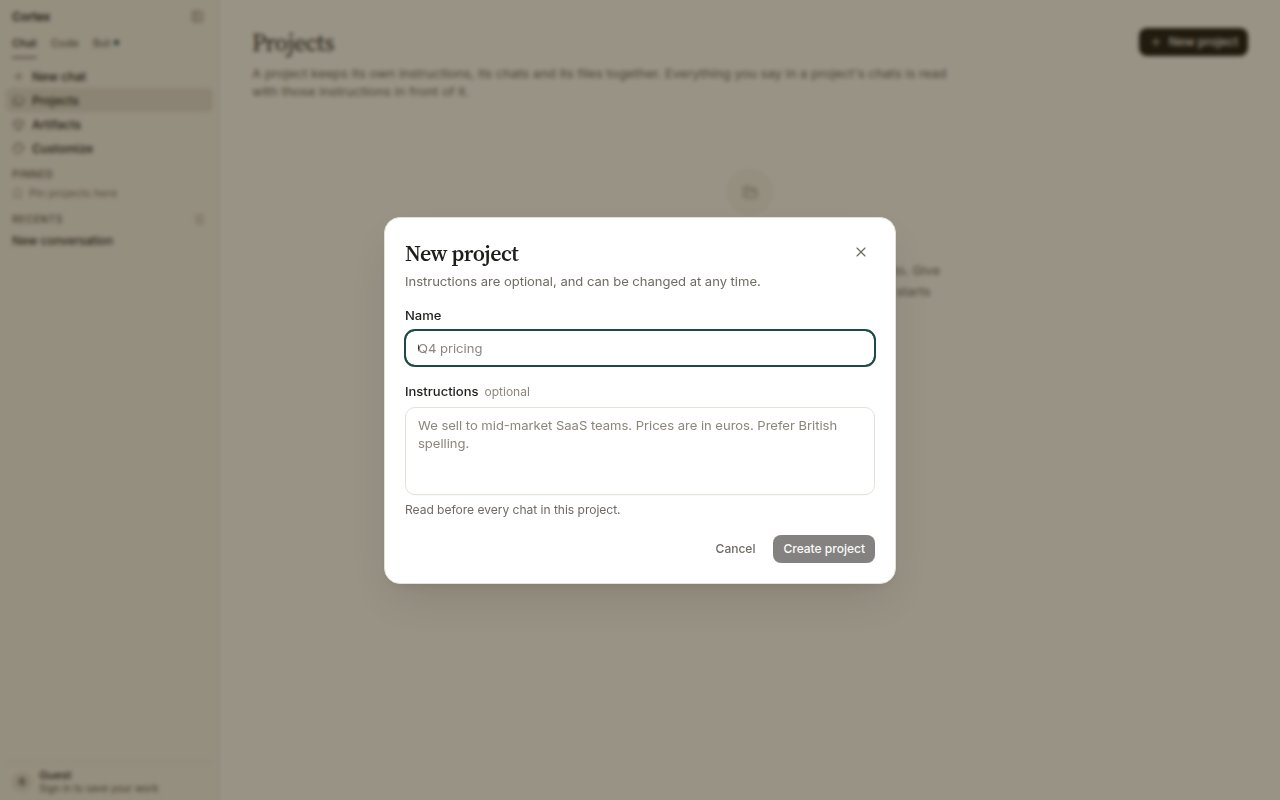
New project: a name, and optional instructions that are read before every chat in the project.
Move a chat into a project
Open the thread and choose Move to project in the header. The popover lists your projects — and Remove from project if the thread already belongs to one. A thread belongs to at most one project.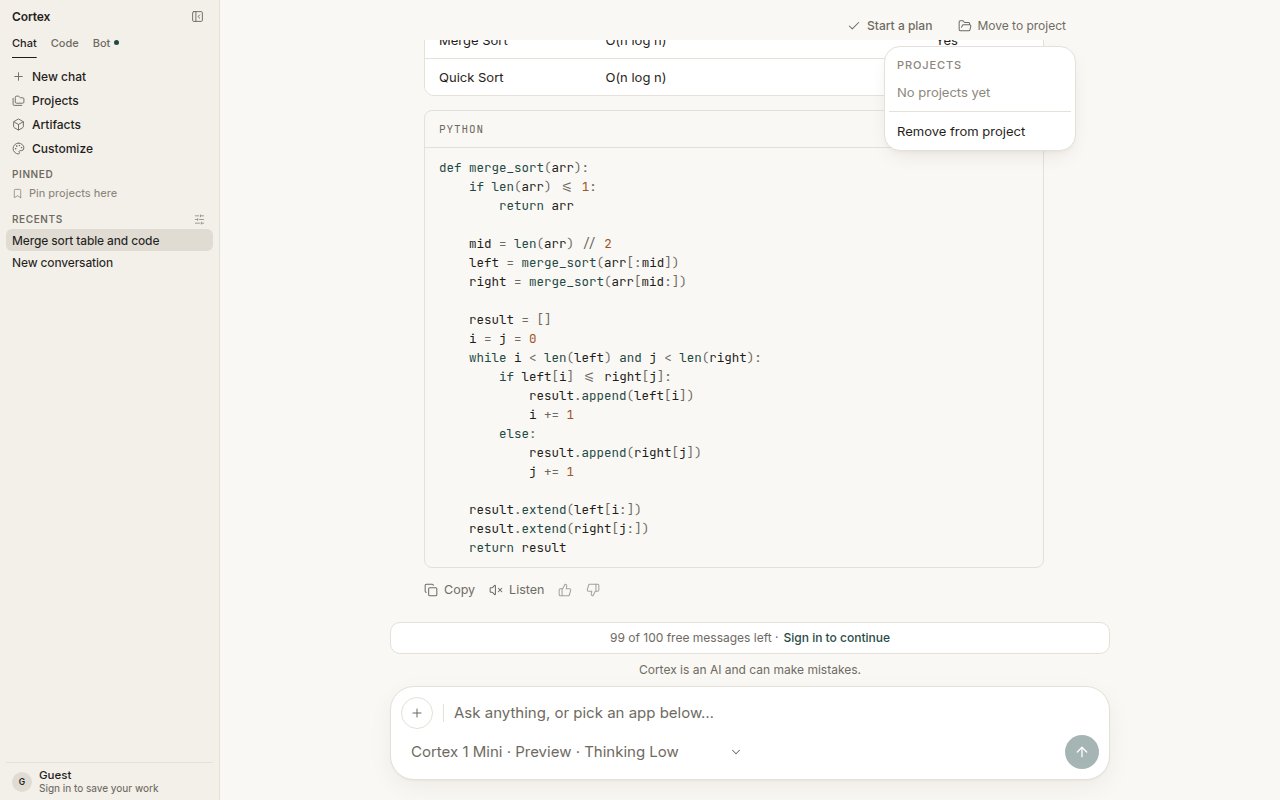
Move to project from the thread header.
Files in a project
Add documents to a project so every chat in it can use them. Files come from your Library — attach from the composer or upload from the project — and a chat receives them as attachments, never as a URL you typed. Generated pictures land in Library too. See Library.Tips
- Keep instructions short and factual. They are read on every turn, so they cost context on every turn.
- One project per ongoing piece of work beats one project per topic. The point is continuity.
- Pin the two or three projects you use daily; the rest stay one click away under Projects.
- Plans started from a project’s chats stay linked to those chats. See Plans.
Cortex Chat is per account. Another account cannot see your projects, and there is no teammate invite on a thread. Plus and Pro plans list Projects and saved work among their features — check Plans for what your plan includes.