

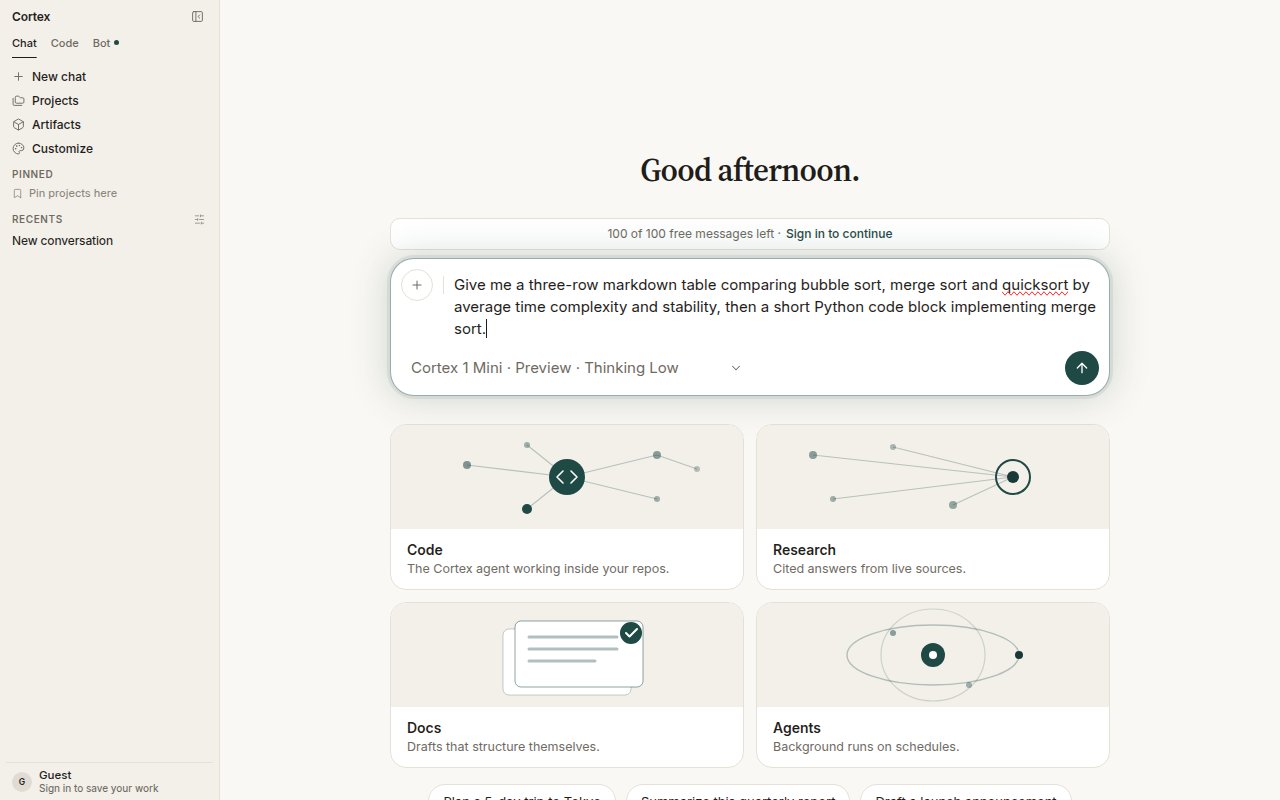
A prompt typed into the composer. Enter sends; Shift + Enter adds a line.
1
Open Chat and send a message
Go to cortex.foundation. Chat is the default surface. Type a question in the composer and press Enter.The reply streams in as it is written. Tables, headings, and code blocks render as you would expect; every code block has its own Copy. Press Esc if you want to stop a response.
2
Attach context
Choose + on the composer, then Attach file, or drop a file onto the composer. Type and size checks run at upload; a rejected file is not attached. Attachments land in your Library, and the conversation receives the file — never a URL you typed.
3
Pick a model and a thinking level
Open the model chip under the text box. Choose Cortex 1 Mini (the default) or Cortex Teutonic-1, set Thinking to Low, Medium, or High, and switch on Deep Research when you want a cited report rather than a quick answer. The choice belongs to this conversation. See Models.
4
Keep the thread in a project
Sign in, then open Projects in the sidebar and choose New project. Give it a name and, optionally, standing instructions — they are read before every chat in the project. Start the next conversation inside it, or use Move to project in the header of an existing thread.
5
Turn the answer into a plan (optional)
In the thread header choose Start a plan. The plan stays linked to the conversation and outlives it if you delete the chat. Track it under Planning. See Plans.
Good first prompts
What guests can and cannot do
Guests get a daily and monthly allowance (the banner above the composer shows it), can attach files to the current session, switch models, and use Deep Research. Projects, Library across sessions, memory, plans that persist, connected apps, and MCP servers need an account. See Accounts.Next
- Projects — instructions, chats, and files together.
- Library — what happens to your uploads and generated files.
- Tools and connectors — connect an app or an MCP server.